01 | Claude Code in 16 Hours: What Claude Code Is and How It Works
Understand where Claude Code fits, its capability boundaries, and its task flow before your first collaboration.
01 · Introduction to Claude Code
What it is, what it can do, and what are the differences between it and ChatGPT / Copilot / Cursor
Guys, let’s talk about Claude Code today.
I guess when you click in, the situation is likely to be like this: there are always people around you saying “How powerful Claude Code is”, and screenshots of “It restructured the project in one sentence” appear on X (Twitter) every now and then, but you open its official website and look at it for a long time and still don’t understand it - **How is it different from the ChatGPT I use every day? How is it different from the auto-completion Copilot in the editor? **
To put it bluntly, with Code in the name, it is easy for people to think that it is just a “chat box that can write code.” But if you really get started using it, you will find that this understanding is a bit far apart.
This article doesn’t teach you how to pretend or type commands (that’s for the next article). This article only does one thing: give you a thorough explanation of “What is Claude Code” so that you have an overall map in your mind - know what it can do, what it cannot do, and what scenarios should use it instead of other tools. Once you have a map, you won’t be confused every step of the way.
After reading this article, you will get:
- Can explain “What is Claude Code” in one sentence?
- A list of “can/can’t do” and know where its ceiling is
- A comparison table, never confuse it with ChatGPT / Copilot / Cursor again
- A standard of judgment: what jobs should be given to it, what jobs should not be counted on it
01 What is Claude Code?
Let me give the conclusion first: Claude Code is Anthropic’s official “command line version of AI programming partner” – it can read your entire project, directly change files, and run commands, instead of just replying to you a piece of code in the chat box.
Anthropic is the company that made the big model Claude (you can think of it as the competitor of OpenAI behind ChatGPT). Claude Code is a tool made by this company specifically for the “writing code” scenario.
There is a key difference here, and this is where newbies are most likely to stumble:
**Analogy: Consultant vs your partner sitting next to you. ** The web version of Claude (or ChatGPT) is like a consultant - you take a screenshot of the code, copy and paste it to him, and he will take a look and give you an idea, but you have to go back and do it manually to change the code. Claude Code is different. It’s like a real partner sitting next to your workstation: your entire project is spread out in front of him, and he can directly flip through the files, make modifications, and run through it after modification to see if it’s correct.
This difference, in reality, is a world of difference in experience.
Give an example. When using the web version of Claude to modify a small Python project, the process is as follows: copy the error message and paste it into the dialog box → it will tell you which file the problem may be → you switch back to the editor to find the file → copy the relevant code and paste it back → it will give modification suggestions → you then manually copy it back to the editor. **A small bug caused the window to be switched back and forth five or six times, and it was gone in half an hour. ** If you switch to Claude Code, for the same job, you can just say “Please help me check the root cause of this error and fix it”, and it will look through the relevant files, locate and modify it, and it will be ready in just a sip of water.
At this moment, you can realize the weight of the word “Agent” - it does not give you advice, but does it for you.
💡 Summary in one sentence: Claude Code = an AI programming partner who can read your entire project and make changes directly, not a “chat box that can write code”.
02 Where it runs: More than just a black terminal
When it comes to “command line” and “terminal”, many novices will immediately have a dark window appear in their minds and be immediately discouraged from doing so. **Don’t panic, this is a common misunderstanding. **
The terminal (Terminal, which is the window in your computer where you type commands) is indeed the core and most versatile form of Claude Code, but it does not only live in the terminal for a long time. According to official documents, Claude Code now has several “identities”:
| Where do you use it | Form | Who is it suitable for / what scene |
|---|---|---|
| Terminal | The most comprehensive CLI (Command Line Interface) | People who want to use all capabilities, write scripts, and automate |
| VS Code / Cursor | Editor plug-in, view changes inline | People who usually write code in VS Code |
| JetBrains | IntelliJ / PyCharm and other plug-ins | Java / Python heavy users |
| Desktop App | Standalone application, visual diff viewing, parallel multi-session | People who don’t want to touch the command line and like point-and-click interface |
| Web/Mobile | Run in the browser or Claude iOS App | Start a long task temporarily, and use your phone to track the progress when you go out |
There is a particularly critical point here that has been emphasized repeatedly by the authorities. I have highlighted it in bold:
**The bottom layer of all these forms is the same Claude Code engine. ** In other words, the CLAUDE.md (project description file) you wrote, your configuration, and the MCP (Model Context Protocol) service you connected - after configuring them in the terminal, they will still take effect when you switch to VS Code or your mobile phone. **Put it together once and use it everywhere. **
Many people mainly use the terminal (they are used to it, it is the most convenient), but when they are out and about, they can use the web version to start a long task of “running tests + fixing failed use cases”, and turn on their mobile phones to take a look at the progress on the way. This kind of “change another place and continue doing it” experience is something that a web chat box cannot provide.
Friendly reminder: This series starts from Terminal by default, because it has the most complete functions and can explain the principles most thoroughly. Once you get familiar with it, switching to VS Code or desktop App will be a matter of course.
💡 Summary in one sentence: Claude Code has five forms: terminal, editor plug-in, desktop app, web page/mobile phone, but the underlying engine is the same, and the configuration is common to all platforms.
03 What it can do: a “can/can’t” list
This part is the most real. Let’s first look at the jobs it can do - I sorted it out according to the official documents and selected a few categories that novices can feel most comfortable with:
- Understand your code: “What does this function do?” “Why is this error reported?” It answers based on the context of the entire project, rather than looking at a section in isolation.
- Cross-file code change: “Change all the places where
varis used tolet” “Split this large function into three smaller ones” - it actually changes it, not just gives suggestions. - Bug fix: Throw the error to it, and it will trace the root cause along the code base, locate it, and fix it.
- Do those chores you’ve been putting off: add tests for untested code, clear lint errors, resolve merge conflicts, upgrade dependencies, and write release notes.
- Dealing with Git: Temporary changes, writing commit information, building branches, and opening PR (pull requests) all in one.
- Connect external tools: read documents from Google Drive, update Jira work orders, and pull data from Slack through MCP (an open standard, which will be discussed later).
Just talking about it is not intuitive enough. Let me give you a real command in the official document to feel what “one sentence command” is like:
claude "write tests for the auth module, run them, and fix any failures"The translation is: “Write a test for the auth module, run it once, and fix it yourself if it fails.” - In one sentence, it covers the three steps of writing tests, running tests, and fixing failures. **This is the essential difference between “agency” and “completion”. **
But, more important than “what it can do” is to recognize what it can’t do. This is very important, and I will add my own experience:
| ❌ What you shouldn’t count on | Why |
|---|---|
| Make technical decisions for you | Choose plan A or plan B, whether it is worth refactoring - judgment and choice are your job |
| Guarantee that the code is 100% bug-free | It gives high-quality candidates, not absolutely correct answers, you must review |
| Guess the business logic you didn’t explain clearly | It can only guess the requirements you didn’t explain clearly |
| Fully automatic hosting project if you can’t understand it at all | If you can’t understand it, you can’t judge whether it is correct or not, which is equivalent to opening it blindly |
The easiest pitfall is the second one. I trusted it so much that I asked it to add error handling to a project in batches. It modified a dozen files and submitted them without even looking at them carefully. As a result, there were two places where it “made its own decisions” and changed its logic, which was discovered only after it went online. **So it’s best to set an iron rule: for every line it changes, scan the diff at least once before submitting it. **
Make good use of the cornerstone of Claude Code’s mentality, just one sentence:
Let Claude Code provide high-quality candidates rather than absolute correct answers.
To put it bluntly, there is only one sentence - Humans determine the direction, check, and make judgments; AI is responsible for execution, analysis, and repetitive work. This is its design philosophy: collaboration, not substitution.
💡 Summary in one sentence: It can read projects, change files, run commands, and do chores, but the decision-making and checking are always your business - It is a partner, not a successor who can just throw away the boss.
04 What is the difference between ChatGPT / Copilot / Cursor?
This is the question most asked by newbies, let’s explain it once and for all. First, a summary table:
| Dimensions | ChatGPT (web chat) | Copilot / Cursor (in-editor) | Claude Code |
|---|---|---|---|
| Form | Web page / App chat box | Plug-in in editor | Command line / plug-in / desktop / web page |
| How to work | You ask it and it answers | You write half of it, and it fills in the other half | You give instructions, and it does it by itself |
| Can’t see your project | Can’t see, you have to paste it manually | Can see the current file/part of the context | Automatically read the entire project |
| Can the file be changed | No, I will give you suggestions to change it yourself | Mainly completion and suggestions | Can be changed directly and can run commands |
| Most Suitable | Ask about concepts, look up information, and write scattered code | Speed up in real time when writing code | Understanding, refactoring, bug fixing, and automation in real projects |
Let me use three simple sentences to impress you into your mind:
- ChatGPT is like a consultant - he can chat about anything, but his eyes are blank on your project, so you have to do the work yourself.
- Copilot / Cursor is like an intelligent input method - you type in code and it guesses what you want to write in the next sentence and helps you type faster, while you are still writing.
- Claude Code is like a partner who can work independently - you tell us what you want, and the rest is done by translating files, modifying code, running tests, and then you accept the work.
Note: Cursor / Copilot here refers to their most classic “in-editor auto-completion” positioning. In the past two years, they have also been developing more “agent-based” functions (such as Cursor’s Agent mode), and the boundaries are becoming blurred. But as an introductory understanding, it is enough to remember the core positioning of the above three sentences. **(Product functions iterate quickly, details are subject to each official company.)
So what are the strengths and weaknesses of Claude Code? Actual measurement:
Its strengths - its ability to understand the entire project is really strong, especially if you take over an old project that you don’t understand and ask it to “tell me about the project architecture first”, it is much faster than chewing the documents for half a day by yourself; large-scale refactoring and cross-file changes are also its home field. In addition, you can use CLAUDE.md and Skill to “tune” it to suit your habits (more on this later).
Its shortcomings - It is not as “insensitive” as Copilot. With Copilot, you just write and it will do it for you, with zero operating cost; with Claude Code, you have to take the initiative to give instructions, and the learning curve is a little steeper. So the relationship between the two is not a substitution, but a cooperative relationship - A convenient combination is to turn on Copilot to complete the code when writing code, and when encountering a job that “requires a large area to be moved”, switch to Claude Code.
💡 Summary in one sentence: ChatGPT is a consultant, Copilot is an intelligent input method, and Claude Code is a hands-on partner - Don’t choose one or the other, assign work according to the job.
05 Hands-on: 30 seconds to confirm whether your computer recognizes it
I promised that this article will not teach installation, but I will leave you with a zero-cost little trick to confirm your environment (this command can be run whether installed or not, and no errors will be reported and things will be damaged).
Open your terminal (use the “Terminal” App for Mac, use PowerShell for Windows), type this line and press Enter:
claude --versionTwo expected results, both normal:
- Situation 1: A string of version numbers pops up, similar to
2.x.x (Claude Code)- Congratulations, you have installed it before. You can jump directly to “Using it” in the next article. - Situation 2: Error
command not found: claude(on Windows it may be'claude' is not an internal or external command) - It is also completely normal, indicating that it has not been installed yet. This is the first thing to be solved in the next article.
Let me spoiler the installation commands that will be used in the next article in advance (Don’t rush to type now, make sure it looks familiar first), the official original version is like this:
# macOS / Linux / WSL
curl -fsSL https://claude.ai/install.sh | bash

# Windows PowerShell
irm https://claude.ai/install.ps1 | iex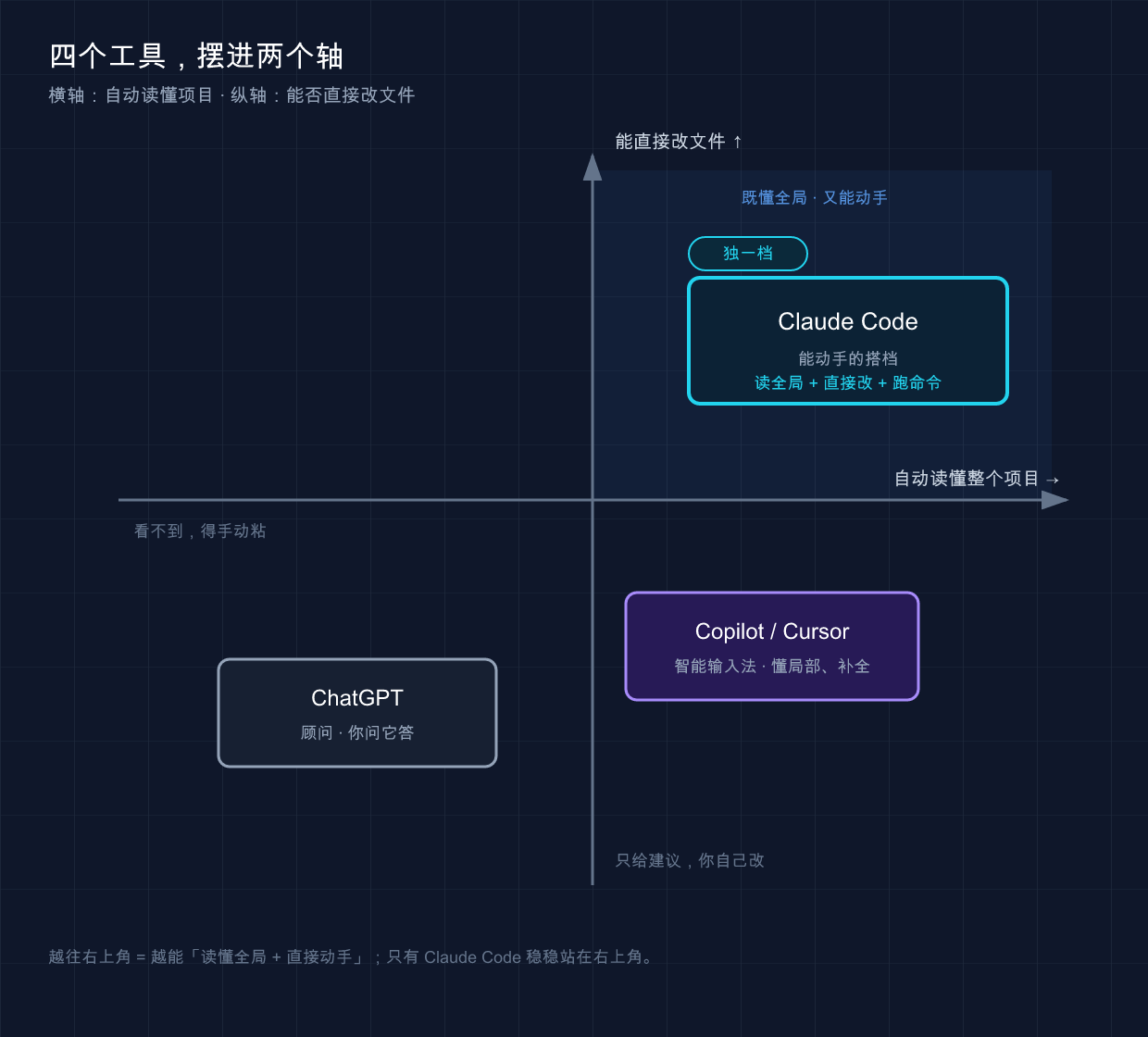
What this picture wants to express is: think of “can you automatically understand your entire project” and “can you directly modify the file manually” as two axes, with four tools in one place - Only Claude Code stands firmly in the corner of “understanding the overall situation and being able to do it”, ChatGPT both rely on manual work, and Copilot/Cursor understands the local part and mainly relies on completion. It doesn’t matter if you can’t see the picture, just remember the three sentences from the previous section.
A reminder: Domestic users usually need “Magic Internet” to install and log in to Claude Code. How to do this and how to log in to the account will be discussed in the next article, so I won’t go into it here.
💡 One sentence summary: A
claude --versioncan confirm whether your computer recognizes it - don’t panic if you report an error, that is the opening task of the next article.
06 Summary
We didn’t type a few lines of commands in this article, but we clarified the things that need to be understood most clearly:
- What is it: Anthropic’s official command line AI programming partner, which can read the entire project, directly change files, and run commands - it is not a “chat box that can write code”.
- Where to use: terminal, VS Code/JetBrains plug-in, desktop app, web page/mobile phone, five forms same engine, common configuration.
- Able/Unable: You can read code, modify files, fix bugs, do chores, and connect external tools; but making decisions, checking, and making up business logic will always be your job.
- Differences from others: ChatGPT is a consultant, Copilot is an intelligent input method, and it is a partner that can work independently. Work is assigned according to the job, and there is no need to choose one from the other.
You should now be able: explain clearly to your colleagues what Claude Code is in one sentence, and also be able to judge “whether this job should be handed over to it.” This is the “map sense” that you should have when getting started - all subsequent functions are added to this map.
Next article 02 “Installation and Use”: Let’s get started, install it on your computer (Mac / Windows / Linux / WSL are discussed separately, no step is missed), log in for the first time, and let the claude command really come alive in your terminal. First, type the claude --version above to see if you belong to “Situation 1” or “Situation 2” - the next article will give you the right solution.
03 · How Claude Code works
When I use Claude Code for the first time, I often encounter this conversation——
You: “Why did you fail this test?” Claude: “Let me run the test suite first and see.” (Start running command) Claude: “The error reported that
validateEmailreturned undefined, let me check this function.” (read the document) Claude: “I found it. There is a return missing here. I will change it and then run the test again to confirm.” (After the change, I ran it again) Claude: “Tested.”
It’s easy to be a little confused when you see this: **I only asked one sentence, how can it run commands, read files, modify itself, and verify itself? **
To put it bluntly, this is the biggest difference between Claude Code and ordinary AI chat boxes. The chat box will only “reply you with a text”, while Claude Code will do things by himself. Behind this is a set of fixed working mechanisms, which I will explain thoroughly today.
After reading this article, you will get:
- Understand Claude Code’s “Agent Loop” in one picture – the three actions it repeats every time it does something
- Figure out what the 5 types of “tools” it has in its hands can do, and how it decides which one to use
- Know what it can and cannot see on your computer (related to security)
- A small experiment that can be followed and watched with your own eyes as it completes the entire cycle
01 Agency Loop: Think → Do → See
Let’s talk about the conclusion first: Claude Code repeats three actions when doing any work-collecting context, taking action, and verifying the result. Officially, this mechanism is called “agent loop”.
To put it in a more earthy way: think → do → see.
- Think (collect context): First understand the situation - read relevant files, read error reports, and check git status
- Do (take action): do it - change code, run commands, create new files
- View (verification results): Check whether what you just did is correct - run the test and look at the output. If not, try again.
Analogy: A reliable car mechanic. ** If you bring your car into the shop and say “the steering wheel is shaking”, the car repairman will not dismantle it immediately. He first took a look around, tried two steps (thinking), then moved the wrench** (do it), and after repairing it, he opened a section to confirm that there was no shaking (seeing). If it still shakes, go back to the first step and check again. Claude Code is just such a master, but he only repairs your code.
Go back to the beginning of the conversation, compare it and you will understand:
| What Claude said | Which step in the cycle corresponds |
|---|---|
| ”Let me run the test suite first” | Think (gather context) |
| “The error says undefined, let me check this function” | Thinking (continue collecting) |
| “There is a missing return here, let me change it” | Do (take action) |
| “Then re-run the test to confirm” | See (verification results) |
| “Tested” | End of loop |
It strings these three steps into a chain, and the result of one step determines what to do next. Fixing a bug may take several rounds. Asking “what does this code mean?” may only require “thinking”. **The number of rounds to loop is determined by the complexity of the task and is not hard-coded. **
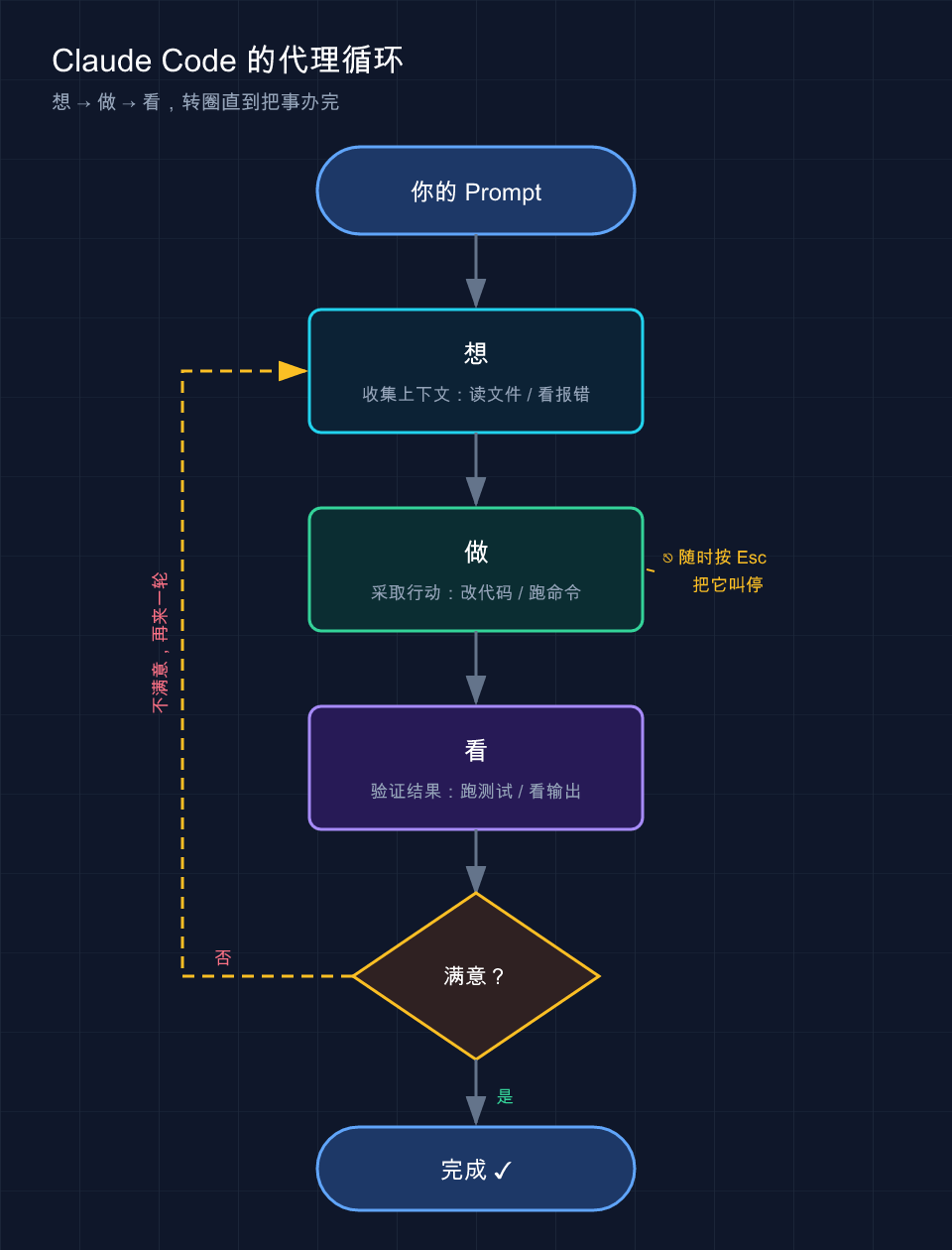
The picture above is the circle that Claude Code goes through every time he works: from “thinking” to “doing” to “seeing”. If you are not satisfied, turn from “seeing” back to “thinking” and start again - you can press Esc to stop it at any time.
Here’s a key point that many people don’t realize: You are part of the cycle. If it goes astray, you can always interject and correct it—more on this in the next section.
There are two things driving this cycle: The model is responsible for “thinking”, and the tool is responsible for “doing” and “seeing”.
The model is Claude’s brain - Sonnet is sufficient for daily programming, and Opus is stronger for reasoning and suitable for complex architectures. Enter /model in the session to switch at any time, or claude --model sonnet when starting.
💡 Summary in one sentence: Claude Code is not “reply to you”, but “want to do → see” in circles until the thing is done. This is the essential difference between it and the chat box.
02 You are also in the loop: you can interrupt at any time
I said it at the end of the previous section: You are also part of this cycle. Let’s chat. Ordinary AI chat is “you ask a question, it answers a question, and the round ends.” Claude Code is different - when it runs by itself in a loop, you don’t have to wait, you can intervene at any time.
For example, if you ask it to reconstruct a module and see that it has gone astray and you are about to make major changes to a bunch of files, just press Esc and it will stop immediately and the running command will be cancelled. Add another sentence “Don’t touch that file, only change this function”, and it will continue following the new instructions.
The difference between the two interruption methods should be clearly distinguished:
| Operation | Effect | When to use |
|---|---|---|
Press Esc | Stop immediately, the running tool call is cancelled, waiting for your next command | It goes astray and is not doing the right thing, stop it quickly |
Typing + Enter | Do not interrupt the current operation, send a supplement, it will finish what you are doing and read it | Just want to add context and remind you, don’t rush to stop |
You don’t need to hold back a “perfect tip”. Give a rough outline first, watch it work, and then correct it if it’s not right - This is a conversation, not a one-time order.
These words are the original words of the official document and are particularly worth remembering. When I first started, I always wanted to “state all the needs in one sentence” and held it back for a long time. In fact, there is no need: throw it in a general direction, and if it makes a mistake, it will stop. Iteration is much faster than holding back the ultimate move.
💡 Summary in one sentence: It works independently, but always listens to your command -
Escemergency stop, typing supplement, the steering wheel is always in your hands.
03 Tools: The reason why it can be really hands-on
The previous section said that the model is responsible for “thinking”. So what do “doing” and “seeing” depend on? **tool. **
This is the most important thing to remember about Claude Code: Without tools, Claude can only reply to your text; with tools, it can actually read your code, change your files, and run your commands. **
**Analogy: An assistant wearing a smart bracelet. ** An assistant who can only talk can only give you ideas; if you equip him with equipment that can open doors, type, and look up information, he can really get things done for you. Tools are Claude Code’s “hands”.
Officially, the built-in tools are divided into 5 categories. I’ll list it for you in plain English——
| Tool Category | What it can do | What operations does it correspond to |
|---|---|---|
| File operations | Read files, change code, create new files, rename, reorganize | You open, type, and save in the editor |
| Search | Find files by file name, search content using regular expressions, and browse the entire code base | You press Ctrl+F or grep |
| Execute | Run shell commands, start the server, run tests, and use git | You type the command in the terminal and press Enter |
| Network | Search web pages, capture documents, and check error messages | You open the browser and search for an error |
| Code Intelligence | View type errors and warnings, jump to definitions, and check references | IDE’s “Go to Definition” and “Find References” |
⚠️ Note: Category 5 “Code Intelligence” requires additional installation of Code Intelligence Plugin. The first 4 categories are available out of the box. The official documentation shall prevail.
So how does it decide which tool to use? It’s not specified by you, it’s chosen by the model itself based on your words and current progress.
To give an official example, if you say “fix failed tests”, it will probably go like this internally:
- Run the test suite and see which one fails - use execution
- Read the error output - Execute
- Search relevant source files - Search
- Read these files and understand the logic - File Operation
- Modify files and fix bugs - File Operation
- Run the test again to verify - Execute
Did you see it? These 6 steps are the expansion of the “think → do → see” cycle at the tool level. Every time the tool is used, a little new information is brought back and fed to the model to decide the next step - this is how the cycle starts.
There is a very typical scenario: let it “organize the directory structure” for an old project without documentation. It does not require you to feed any files. It uses ls, uses grep keywords, reads seven or eight files, and finally draws a structure diagram. No document was specified in the whole process - This is what the official said is “delegation, not instructions”: give direction and figure out the details by yourself.
As for Skill, MCP, Hook, and Subagent - they are extension layers built on top of these five types of built-in tools, allowing Claude to know more and connect to more external services. I will talk about it one by one in the next part of this series. Just know that this is the case.
💡 Summary in one sentence: Tools are the “hands” of Claude Code, and each of the 5 categories takes care of one; it decides which one to use and how many times to use it, you just talk about the goal.
04 What can it see on your computer?
This section is related to safety and needs to be explained clearly. Many people will mutter when using it for the first time: **Did it flip through my entire hard drive and transfer it away? ** no.
Let me remember one thing first: Claude Code’s “field of view” is basically equal to what you can touch on the terminal in that directory. In whichever folder you typed claude, its activity range will be centered there.
According to the official documentation, when you run claude in a certain directory, it can access:
- Your project: Files in the current directory and subdirectories (files in other places require permission from you before they can be touched)
- Your terminal: any command you can run - build tools, git, package managers, scripts. If the command line can do it, it can do it
- Your git status: current branch, uncommitted changes, recent commit history
- Your
CLAUDE.md: The project-specific instructions you wrote, which will be read in every session (there is a special article at the end of this file) - Extensions you configured: MCP, Skill, Subagent, etc.
Precisely because it can see the entire project, not just the file you are currently opening, it can coordinate across files - if you say “fix the login bug”, it can search out several related files, modify them together, and then run tests to verify them. **This is not the same thing at all as an inline completion plug-in that only looks at the current file. **
How to ensure safety? Two gates——
The first pass: checkpoint, which is equivalent to the game archive. ** Before it changes any files, it will take a snapshot of the current content. If the change is broken, click Esc twice (or enter /rewind) when the ** input box is empty, and a “rewind menu” will pop up. Select “Restore Code” to return the file to the time before the change; you can also directly say “Undo the changes just now.”
**The checkpoint only covers files modified by Claude using the editing tool - changes made by bash commands and external side effects are not included. ** Operations such as database, API, and online deployment that are “thrown out and cannot be recovered” cannot be archived - so Claude will ask you before running such commands that have external effects.
There is a common pitfall here: sometimes it changes five or six files, and after reading it, you feel that the direction is completely wrong. In the past, I had to manually roll back git checkout one by one. Now press Esc twice and select “Restore Code” in the pop-up menu - all five files are returned to before the change, clean and neat. With this hand, it is not so scary to let it change the code.
**Second step: Permission mode, which is equivalent to the intern asking if you want to do something before taking action. ** Press Shift+Tab to cycle through:
| Permission Mode | Status Bar Display | Claude’s Behavior |
|---|---|---|
| Default | (no prompts are displayed) | You will be asked before changing files and running commands |
| Automatically accept edits | ⏵⏵ accept edits on | File modification and common file commands (such as mkdir, mv) do not ask, other commands still ask |
| Plan Mode | ⏸ plan mode on | Can read files and run exploratory commands, but does not edit source code; gives you a plan first, and you approve it before proceeding |
| Auto mode | ⏵⏵ auto mode on | Evaluate all operations with background security checks (Experimental, currently in research preview, subject to change) |
The most worthwhile habit to develop is to use Plan Mode: press Shift+Tab twice to enter a complex task, and let it “just analyze and come up with a plan, don’t do anything”. Go through the plan, change it, and then let it execute after confirmation. This can avoid several “wrong direction and half-corrected” rework - first look at the drawings and then construct, which is much more trouble-free than making changes while working.
Do you find it annoying to ask every time? You can add trusted commands (such as npm test, git status) to the whitelist in the project’s .claude/settings.json, and don’t ask again in the future. Configuration details will be discussed later.
💡 Summary in one sentence: Its field of view ≈ your terminal permissions in that directory; Checkpoint controls “you can undo it if you change it”, and permission mode controls “ask before you do it” - under two gates, you can use it freely.
05 Hands-on: See it go through a complete cycle with your own eyes
If you can’t remember the principle just by looking at it, run a minimal experiment and watch it “think → do → see” in a circle with your own eyes. This experiment does not rely on any ready-made projects, you can just create a new empty folder.
**Step one: Create an empty directory, go in and start Claude Code. **
Run in the terminal (Mac/Linux; Windows use PowerShell to replace mkdir -p with mkdir):
mkdir -p ~/cc-demo && cd ~/cc-demo
claude
**Step 2: After entering, first switch to the planning mode to see how it “thinks”. **
Press Shift+Tab twice, and you will be prompted at the bottom of the interface to enter Plan Mode. Then throw this sentence to it:
帮我写一个 Python 脚本 add.py,里面一个函数 add(a, b) 返回两数之和,
再写几个测试用例验证它,最后跑一遍测试。先给我计划,别直接动手。
Expect to see: It will not create the file immediately, but will give you a plan first, which is roughly——
计划:
1. 创建 add.py,实现 add(a, b)
2. 创建测试(用 assert 或 pytest)
3. 运行测试,确认全部通过

需要我开始吗?
This is “thinking” - it is clarifying your thoughts before taking action. **Note that it stops and waits for your approval, this is a characteristic of planning mode. **
**Step 3: Approval, see it “do” + “see”. **
Reply “Okay, let’s get started.” Then you will see it in order:
- Create File (File Operation Tool) - You may want to confirm the permissions first, then click Agree
- After writing, run the test (execution tool), such as executing
python add.pyorpytest - Post the test output to you, expected to be similar:
测试通过:add(2, 3) == 5 ✓ add(-1, 1) == 0 ✓ add(0, 0) == 0 ✓At this point, you have gone through the complete cycle: Think (come up with a plan) → Do (create files, write code) → View (run test report results).
**Step 4 (optional): Deliberately create a “recycle.” **
Tell it: “Change add to subtraction, but change the function name, and rerun the test.”
You will see that it finishes the code and then runs the test - if the test assertion is still addition, the test will hang, and it will find it on its own and go back and change it. This is the essence of the cycle: **When you see something is wrong, you automatically start another round. **
It’s worth running this experiment for any novice. Compared with reading the four words “agency cycle” ten times, you can understand it much faster if you watch it with your own eyes, stop and make plans, start again, and verify again.
💡 Summary in one sentence: Run this minimal experiment, and you will see with your own eyes that “want → do → see” circles - especially when it will find the error on its own and automatically start another round.
06 Summary
This article explains one thing clearly: **Why can Claude Code do his own work? **
Let’s review the core:
| Key points | One sentence to remember |
|---|---|
| Agent Loop | Think → Do → See, and circle until it is done; This is the essential difference between it and the chat box |
| Model + Tool | The model is responsible for thinking, and the tool is responsible for doing and seeing |
| 5 types of tools | File / Search / Execution / Network / Code Intelligence, choose which one to use |
| What can you see | ≈Your terminal permissions in that directory can be coordinated across files |
| Two safety gates | Checkpoints (changes can be undone) + permission mode (ask before doing anything) |
You should now be able to understand what is happening on the screen when Claude Code runs a task - every file it reads and every command it runs is a step in the loop; you also know how to use Esc to make an emergency stop, use the plan mode to see the plan first, and rely on checkpoints to make changes with confidence.
Understanding this mechanism, your mentality will be completely different when using it: It is not a wishing well, but a partner who can think, do things, and check by himself - your job is to give direction, set acceptance standards, and help when things go off track.
Next article 04 · API Configuration: Claude Code is installed and the principle is understood, but it needs to be connected to the model to really work. The next article will take you through the API connection - after this step is completed, the loops and tools learned previously can run.